How to Keep Cricket Scores with Tap Live Stats
A cricket scorebook records every ball: runs, extras, wickets and who bowled it. Tap Live Stats does the same on your phone and does the sums for you, keeping the score, the overs, the run rate and the chase, and building a full scorecard for both innings. This guide covers setting up a limited-overs match, scoring each ball, wickets and extras, and reading the scorecard.
Setting up the match
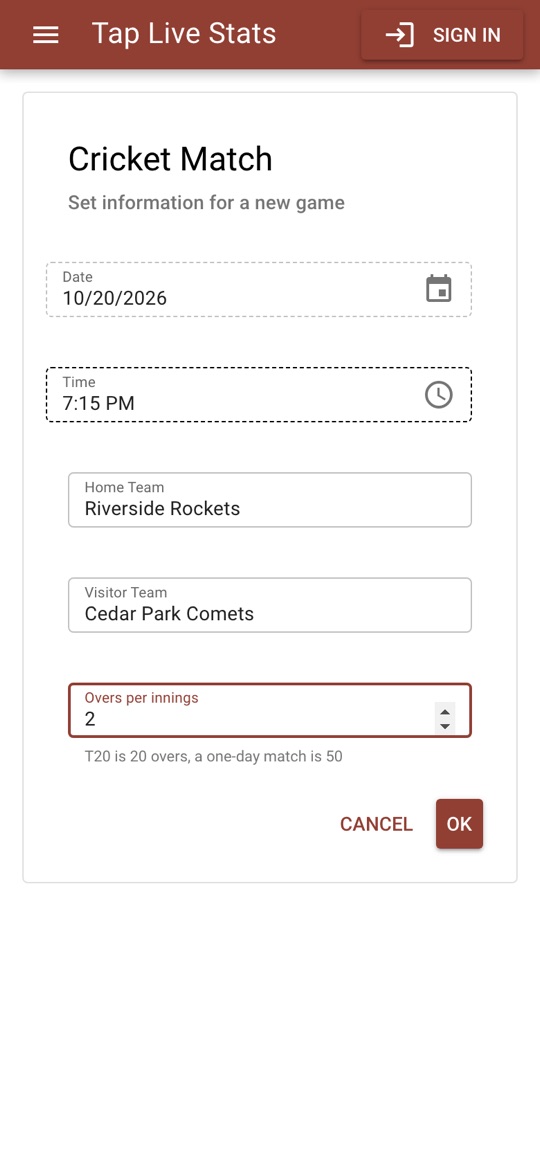
Open Tap Live Stats, tap Track Player Stats, then Start New Game and choose Cricket. Enter the home and visiting teams and the overs per innings, from 1 to 50 (20 for T20, 50 for a one-day match), and tap OK.
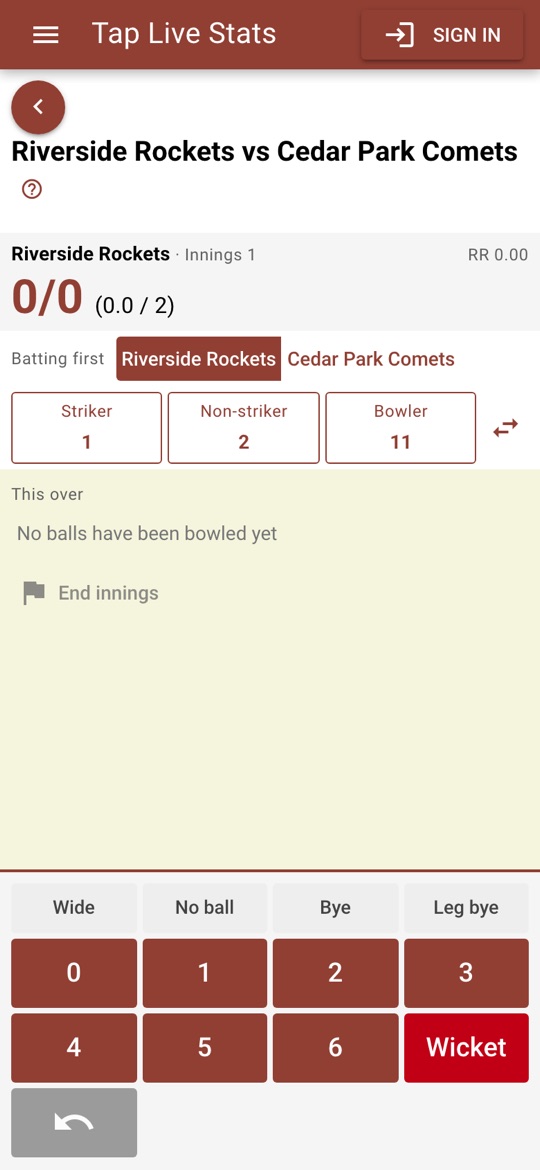
On the match screen, choose the team batting first, then tap Striker, Non-striker and Bowler in turn and type each player's jersey number. Players are identified by jersey number, like every other team sport in the app. The arrows beside them swap the batters' ends.
Scoring each ball
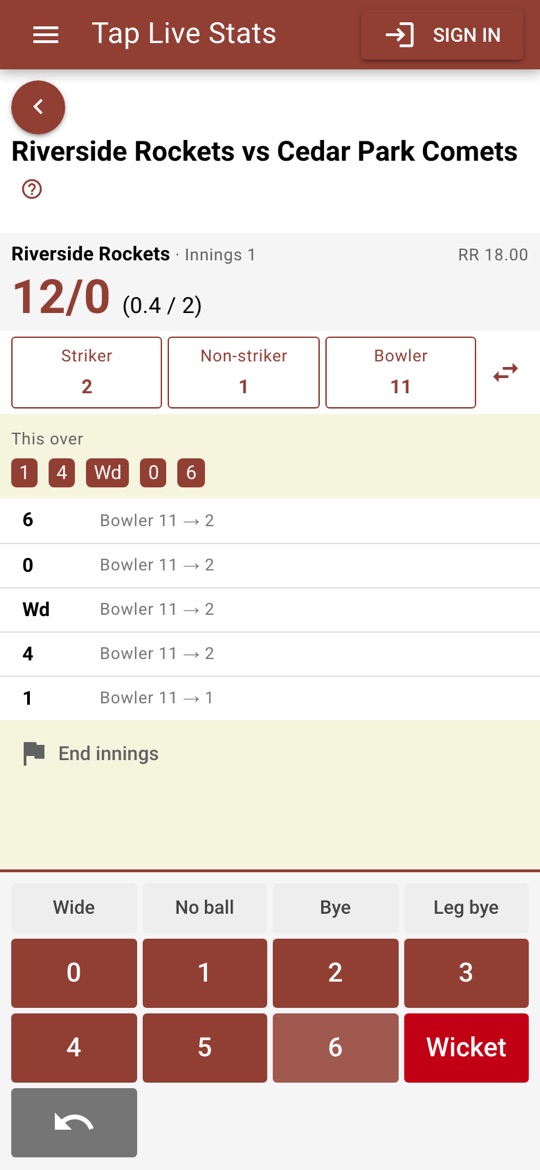
Tap the runs for each ball. For an extra, tap its type first, then the runs:
- Runs off the bat: 0 to 6.
- Wide, then the runs the batters ran: one wide is Wide then 0; a wide that runs to the boundary is Wide then 4, five in all. A wide is not one of the over's six balls.
- No ball, then the runs off the bat: one extra plus the runs, which go to the batter. A no ball is not one of the six balls either.
- Bye or Leg bye, then the runs: they count as extras, not the batter's runs, and the ball does count in the over.
The scoreboard shows the runs, wickets, overs and run rate, and This over shows each ball. The batters change ends after an odd number of runs and at the end of every over. After six legal balls, choose the next bowler; the same bowler cannot bowl two overs in a row.
Wickets
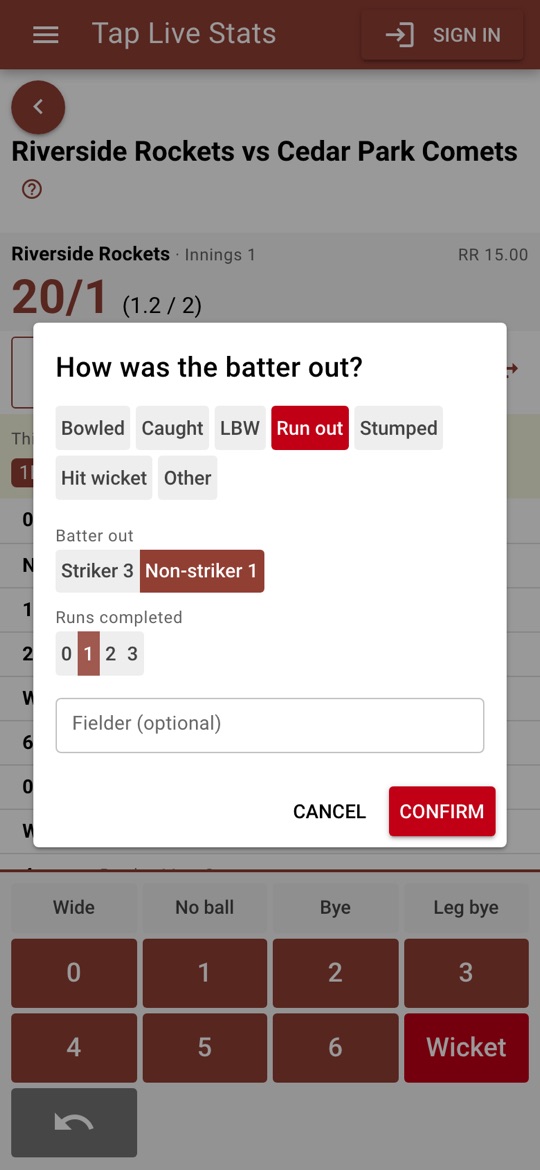
Tap Wicket and choose how the batter was out: Bowled, Caught, LBW, Run out, Stumped, Hit wicket or Other. Only possible dismissals are offered: off a wide, stumped, run out or hit wicket; off a no ball, only run out.
For a catch, type the fielder's jersey number; leave it blank only for a caught-and-bowled, which the scorecard shows as c & b. For a run out, choose which batter was out and how many runs were completed first.
Then choose the new batter. After a run out the new batter takes the dismissed batter's place; if the batters had crossed the other way, tap the swap arrows.
Innings and the result
An innings ends at ten wickets, when the overs are bowled, when the chasing side passes the target, or when you tap End innings and confirm, for example if the batting side declares or the game is called. Then choose the next batters and bowler for the second innings.
In the chase the scoreboard shows the target, the runs needed from the balls left and the required rate. When the match ends the app gives the result: won by runs, won by wickets, or tied.
Fixing mistakes
Tap the undo key to take back the last ball; undo again to go further back. If you are signed in, an undone ball is removed from your backed-up copy too. A batter on the wrong end can be fixed with the swap arrows.
Reading the scorecard
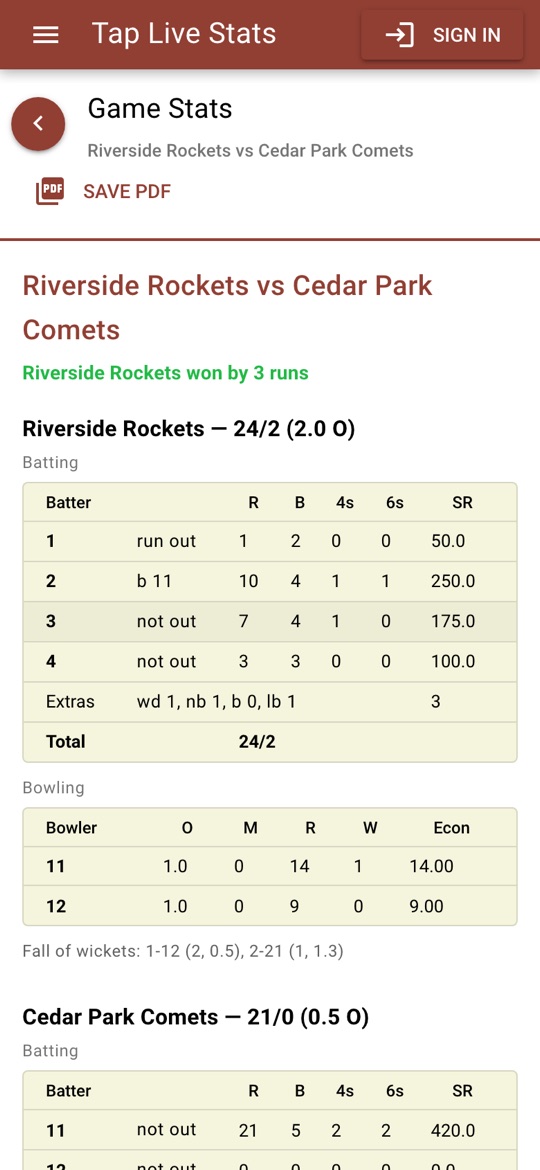
Open View Stats on the match for the result and a scorecard of each innings:
- Batting: each batter's runs (R), balls faced (B), fours, sixes, strike rate (SR, runs per 100 balls) and how they were out, such as b 11, c 5 b 11, run out, or not out. Wides do not count as balls faced; byes and leg byes are not the batter's runs.
- Extras: wides, no balls, byes and leg byes, then the total.
- Bowling: overs (O), maidens (M), runs conceded (R), wickets (W) and economy (Econ, runs per over). Wides and no balls count against the bowler; byes and leg byes do not. Run outs are not the bowler's wickets.
- Fall of wickets: the score when each wicket fell, with the batter out and the over, such as 1-12 (2, 0.5).
Tips for accurate scores
- Check the striker before every ball. The app moves the batters for you, but a missed run puts the next ball on the wrong batter.
- Tap the extra type before the runs: a wide or no ball recorded as plain runs changes the over and the bowler's figures.
- Check the score against the scoreboard at the end of every over, while the over is fresh.
- Not sure what a screen does? Tap the ? at the top of the match screen for a short walkthrough.