How to Keep Football Stats with Tap Live Stats
Football stats are the hardest to keep from the sideline: every snap has a passer, a ball carrier or a tackler, and most plays gain or lose yards. Tap Live Stats lets you keep them on your phone, play by play, and builds offense, defense and special teams box scores for both teams as you go. Scoring alone? Follow one player in detail and record everyone else to the team with one tap. This guide covers recording plays and yards, scoring on your own, keeping the score and reading every table.
Before kickoff
Open Tap Live Stats, tap Track Player Stats, then Start New Game and choose Football. Enter the home and visiting team names, check the date and time, and tap OK. Your game appears in the list; tap it to start recording.
Decide what you will keep before the first snap. With a second scorer, you can each take a team or a side of the ball. On your own, pick the player you care most about and follow them, and record everyone else's plays to the team (see Scoring on your own). Either way, have the jersey numbers you need handy.
What you can record
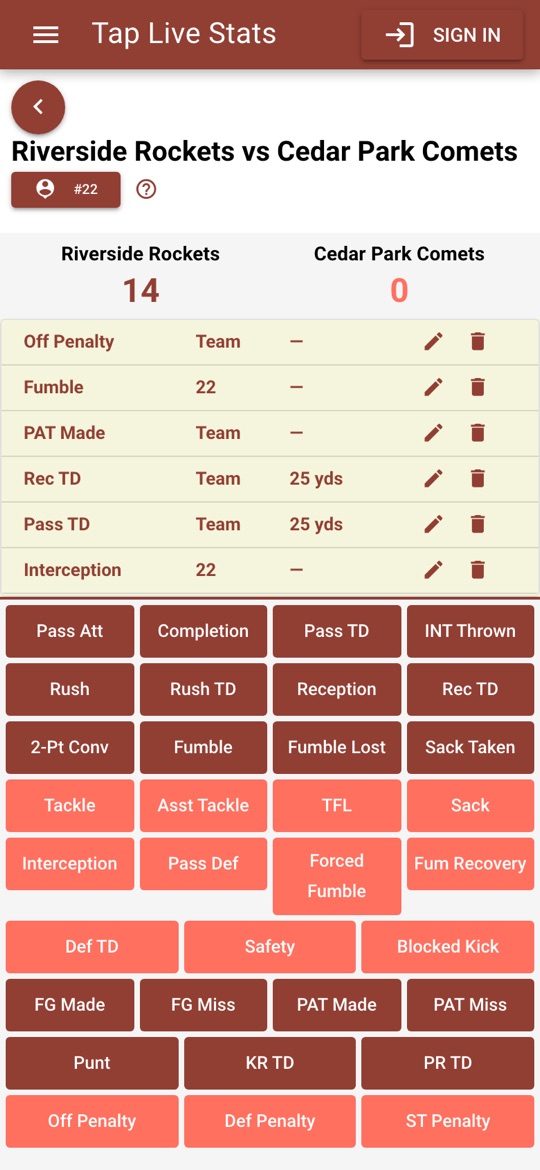
The buttons are grouped the way a play unfolds:
- Offense: Pass Att (an incomplete pass), Completion, Pass TD, INT Thrown, Rush, Rush TD, Reception, Rec TD, 2-Pt Conv, Fumble, Fumble Lost and Sack Taken.
- Defense: Tackle, Asst Tackle, TFL (tackle for loss), Sack, Interception, Pass Def, Forced Fumble, Fum Recovery, Def TD, Safety and Blocked Kick.
- Special teams: FG Made, FG Miss, PAT Made, PAT Miss, Punt, KR TD (kick return touchdown) and PR TD (punt return touchdown).
- Penalties: Off Penalty, Def Penalty and ST Penalty, for the player who drew the flag.
Recording a play
Every play starts the same way:
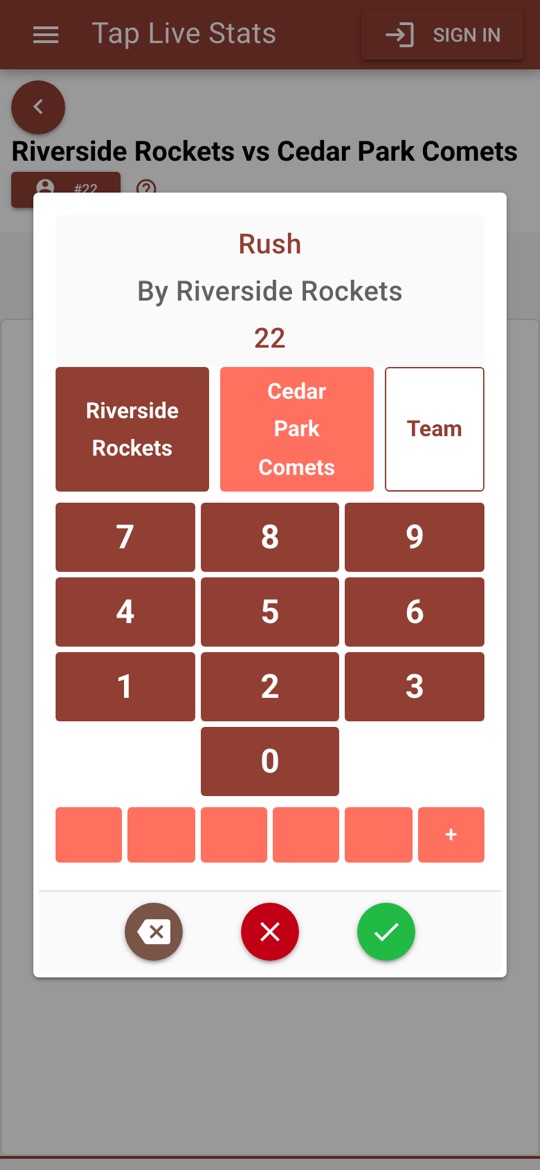
- Tap the button for what just happened, such as Rush.
- On the number pad, check the team. The pad names the team at the top; tap the other team's button to switch.
- Tap the player's jersey number and tap the green check mark.
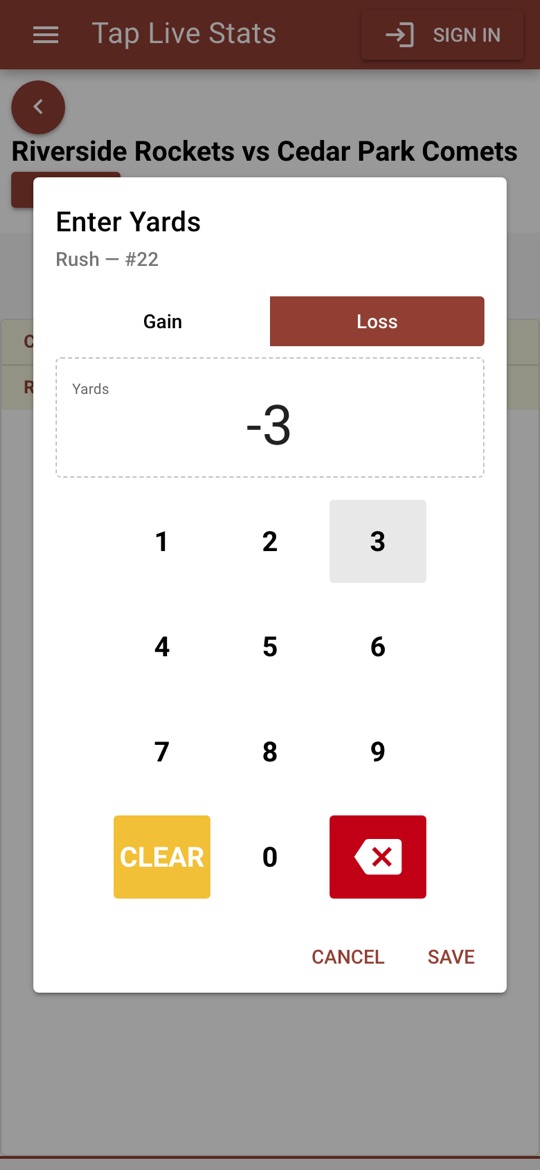
- For a play that gains or loses ground, a yards pad opens. Type the yards and tap Save.
The red ✗ closes the pad without saving, and the backspace key fixes a mistyped digit. Recorded plays appear in a list at the top of the screen, newest first, with their yards.
Yards, gains and losses
Eight buttons ask for yards: Rush, Completion, Reception, Rush TD, Pass TD, Rec TD, FG Made and Punt. A run or catch that lost ground is recorded as a loss: tap Loss above the number, then type how many yards were lost, and the play shows as -3 yds. A run or catch for no gain is 0 yards. A punt can be 0 when it is blocked. A touchdown or a made field goal is always at least 1 yard, so Save stays off until you type one.
A touchdown with its yards counts as the whole play. Rush TD for 12 yards is a carry, 12 rushing yards and a rushing touchdown in one entry, so you never tap Rush as well. Pass TD and Rec TD work the same way for the passer and the receiver.
Quick-select jerseys
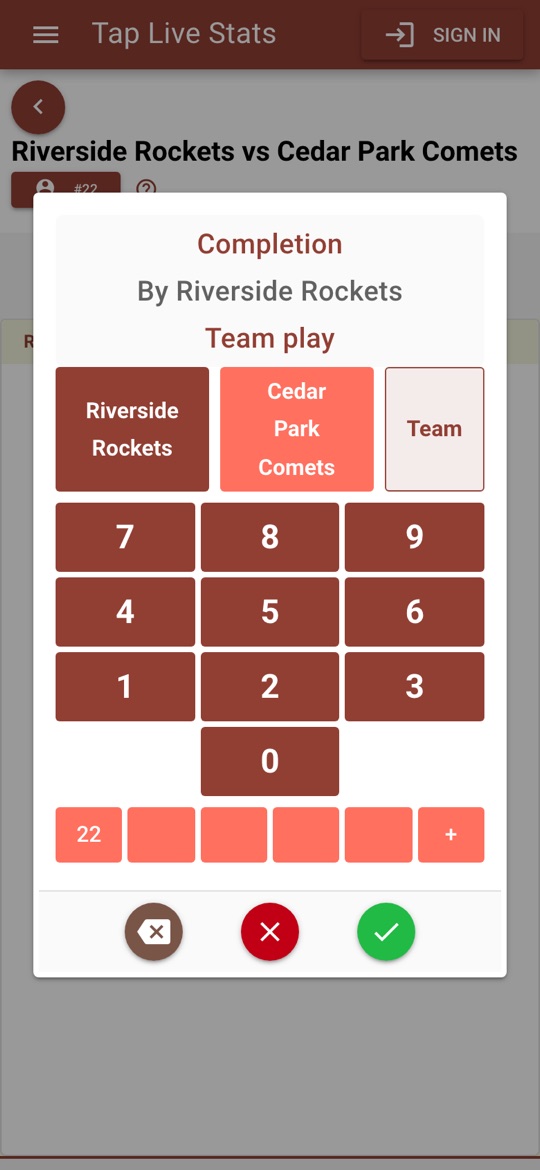
Below the keypad are five quick-select slots. The first five jersey numbers you record fill them, and after that one tap on a slot enters that number. To put the number you have typed into a slot instead, tap the slot before you confirm. Team plays never take a slot.
Recording common plays
Each button records one player's part of a play, so a play that involves two players takes two entries. Recording them the way a statistician would keeps both sides of the box score honest:
- A touchdown pass: Pass TD for the passer and Rec TD for the receiver, each with the yards of the play. Nothing else is needed.
- An incomplete pass: Pass Att for the passer. A completion already counts as an attempt, so never add Pass Att to a catch.
- A run stopped behind the line: Rush with Loss and the yards lost for the ball carrier, then TFL for the tackler. A TFL counts as a tackle too, so there is no need to add Tackle.
- A sack: Sack Taken for the quarterback, then Sack for the defender.
- A turnover: INT Thrown for the passer and Interception for the defender, or Fumble Lost for the ball carrier with Forced Fumble and Fum Recovery for the defenders. Fumble Lost counts as a fumble too, so use Fumble only when the offense kept the ball.
- A field goal: FG Made with the distance of the kick, or FG Miss. The distance is what sets the kicker's long.
- After a touchdown: PAT Made or PAT Miss for the kicker, or 2-Pt Conv for the player who scored the two-point try.
- A penalty: Off Penalty, Def Penalty or ST Penalty for the player flagged. Penalty yards are not recorded.
Scoring on your own
Nobody can catch every jersey on every snap alone. Two tools let one person keep the team's numbers and one player's in detail, in the same game.
Team plays
The Team button beside the two team names records the play to the team, with no player. The pad shows Team play; tap the check mark and enter yards as usual. Team plays count in every team total and in the Team Stats card, and the box score lists them in a Team row just above TOTAL. Typing a jersey number after tapping Team replaces it.
Follow a player
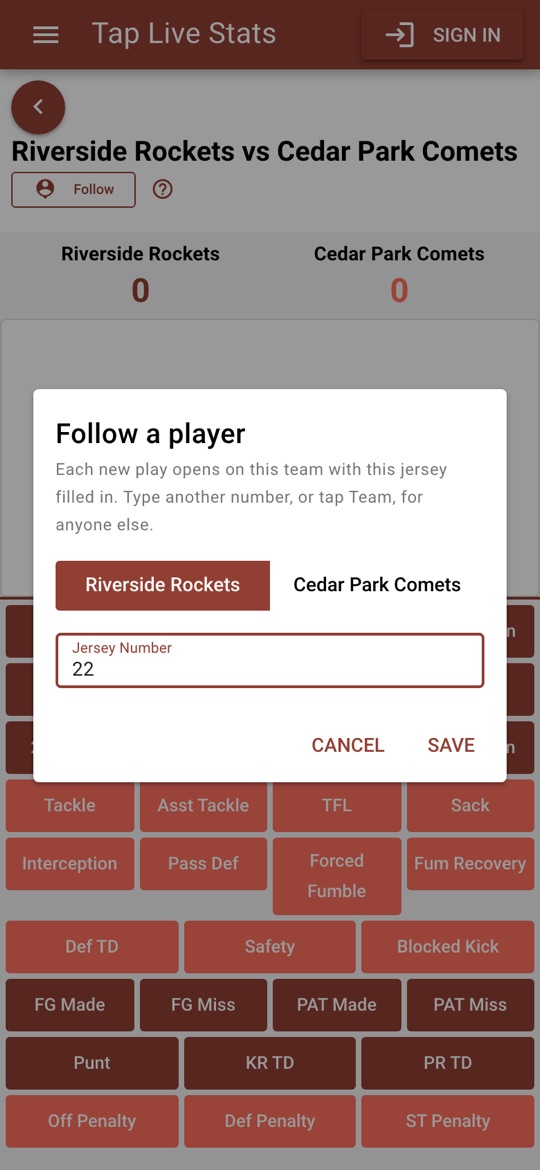
Tap Follow at the top of the recording screen, choose the player's team, type their jersey number and tap Save. The button then shows their number, such as #22. From then on every play opens on that team with their jersey already filled in, so recording their run is just the action, the check mark and the yards.
For anyone else, type their number, which replaces the followed jersey, or tap Team. Switching to the other team clears the followed jersey, since that player is not on the field for them. The followed player's rows are highlighted in the box score. To change player, tap the button again; Stop following ends it.
Keeping the score
No button changes the score, including touchdowns, field goals, extra points and safeties, because only you know when a score stands. Tap a team's score at the top of the recording screen, type the new total and tap Save. Update it after every score so the screen always matches the scoreboard.
Fixing mistakes
Wrong player or wrong yards? Tap the pencil next to the play in the list. You can change the jersey number and, for a play with yards, the yards, including whether a run or catch was a gain or a loss. Wrong button, wrong team, or a play that should have been a team play? Tap the trash can to remove it and record the play again. The box score updates to match.
If you are signed in, deleting a play also deletes its backed-up copy, so it does not come back, and edits are backed up the next time your game is.
Reading the box score
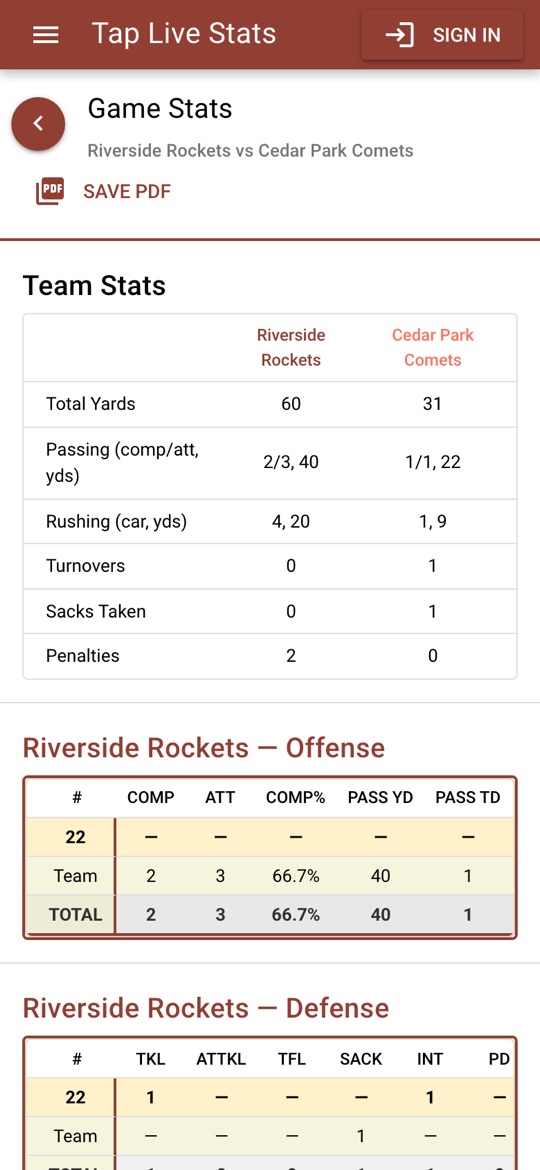
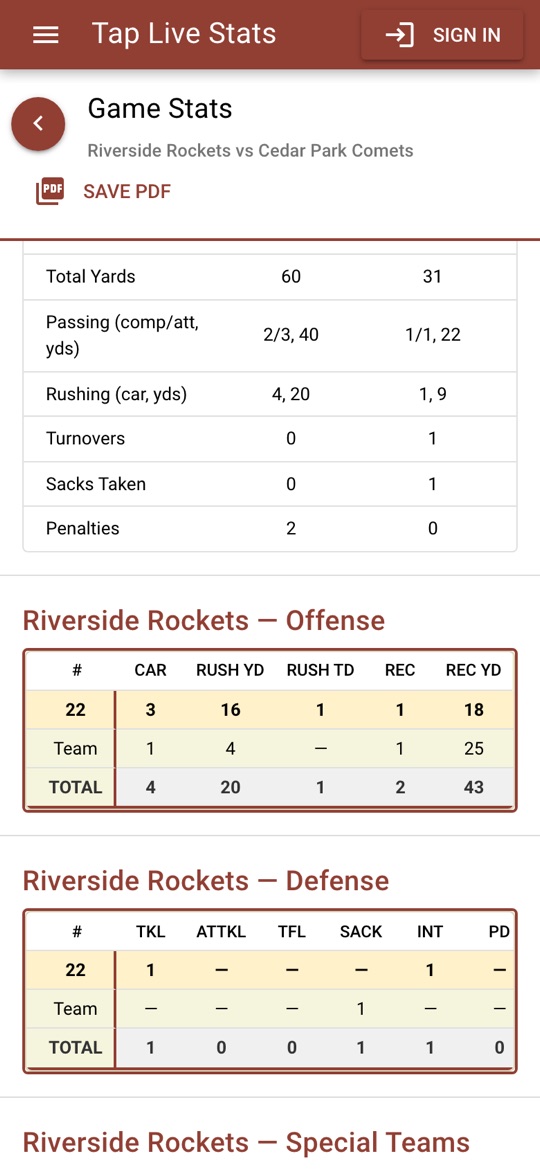
Open View Stats on the game. At the top is a Team Stats card; below it, each team has three tables: offense, defense and special teams. Every table lists each player who has a play for that team, sorted by jersey number, with dashes where they have nothing in that table; then a Team row if you recorded team plays, and a TOTAL row.
Team Stats
The card compares the two teams, counting players and team plays alike:
- Total Yards: passing yards plus rushing yards.
- Passing: completions/attempts and passing yards, such as 2/3, 40.
- Rushing: carries and rushing yards, such as 4, 20.
- Turnovers: interceptions thrown plus fumbles lost.
- Sacks Taken: times the team's quarterback was sacked.
- Penalties: offensive, defensive and special teams penalties together.
Offense
- COMP, ATT, COMP%, PASS YD, PASS TD, INT: completions, attempts, the percentage completed, passing yards, passing touchdowns and interceptions thrown. Attempts are completions, touchdown passes and Pass Att together.
- CAR, RUSH YD, RUSH TD: carries, rushing yards (losses subtract) and rushing touchdowns.
- REC, REC YD, REC TD: receptions, receiving yards and receiving touchdowns.
- 2PT, FUM, FUML, SKT: two-point conversions, fumbles (every fumble, lost or kept), fumbles lost and sacks taken.
- PEN: offensive penalties.
Defense
- TKL, ATTKL, TFL, SACK: tackles (tackles for loss included), assisted tackles, tackles for loss and sacks.
- INT, PD, FF, FR: interceptions, passes defended, forced fumbles and fumble recoveries.
- BLK, D-TD, SAF: blocked kicks, defensive touchdowns and safeties.
- PEN: defensive penalties.
Special teams
- FGM, FGA, FG%, LONG: field goals made, attempted (made plus missed), the percentage made and the longest made kick.
- PAT, PATA, PAT%: extra points made, attempted and the percentage made.
- PUNTS, PUNT YD, AVG: punts, total punt yards and the average per punt.
- KR TD, PR TD: kick return and punt return touchdowns.
- PEN: special teams penalties.
Percentages show one decimal place, such as 66.7%. A dash means the player had none of that stat, or no attempts for a percentage.
Recorded football in an older version of the app, before touchdowns asked for yards? Those touchdowns still count only as touchdowns, because the completion, carry or catch was recorded separately at the time, so the old totals do not change.
Tips for accurate stats
- Record each play before the next snap. In football the huddle is your window, and it closes fast.
- Read the yards from the line of scrimmage to where the ball was downed, and tap Loss for anything behind the line.
- Scoring alone? Follow the player you care about and use Team for everyone else. A complete team total beats a half-finished roster.
- Do not add a Completion, Rush or Reception to a touchdown. The touchdown with its yards already counts as the play.
- Update the score after every touchdown, field goal and safety, and check it against the scoreboard at each quarter.
- Not sure what a screen does? Tap the ? at the top of the recording screen for a short walkthrough.