How to Keep Gymnastics Scores with Tap Live Stats
A gymnastics meet is a lot of scores: every gymnast on every event, an all-around, places within each level and, often, team totals. Tap Live Stats keeps them all on your phone. Add your gymnasts once, enter each score as the judges post it, and the app ranks every event and the all-around and adds up the team scores. This guide covers setting up the meet, entering scores and reading the results.
Setting up the meet
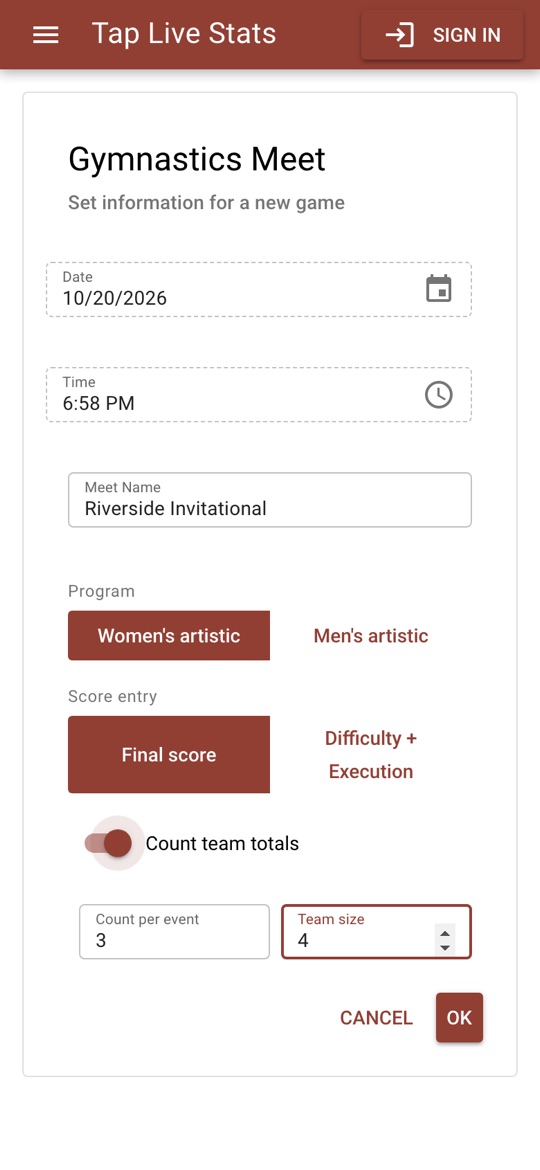
Open Tap Live Stats, tap Track Player Stats, then Start New Game and choose Gymnastics. Enter the meet name and choose:
- Program: Women's artistic (Vault, Uneven Bars, Balance Beam, Floor) or Men's artistic (Floor, Pommel Horse, Rings, Vault, Parallel Bars, High Bar).
- Score entry: Final score, a single score of up to 10 as used by levels, Xcel, high school and college, or Difficulty + Execution, for scores built from a D score and an E score, which can go above 10.
- Count team totals, if teams are competing: Count per event is how many scores count on each event and Team size how many compete, such as 3 of 4.
Adding gymnasts
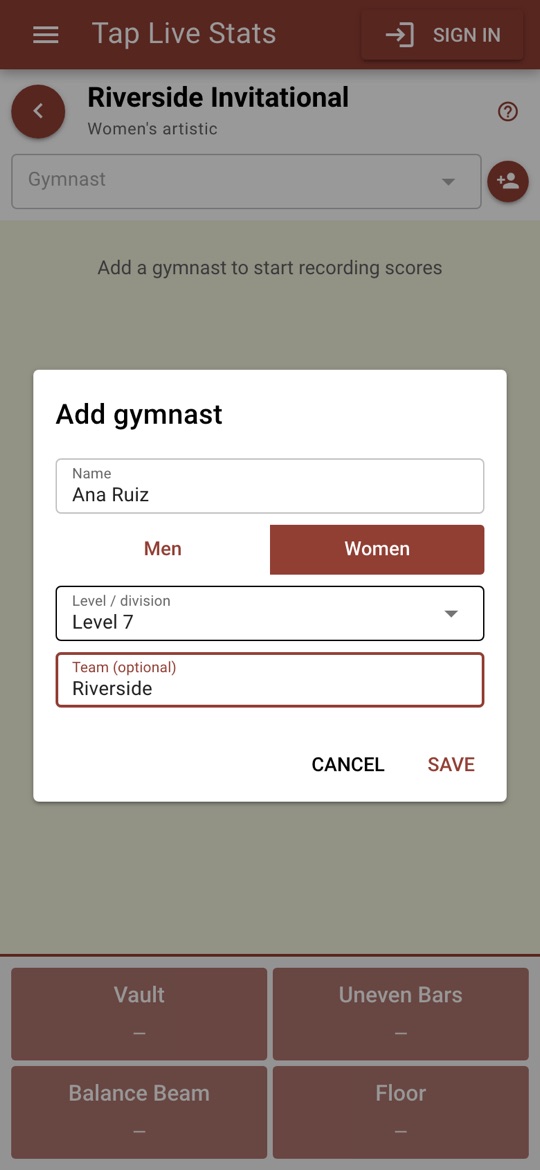
Tap the add-person button. Enter the gymnast's name, check Men or Women (it starts on the meet's program) and choose a level or division: Levels 1 to 10, Xcel Bronze to Diamond, Varsity or JV, or type your own. Add the team name if they score for a team; leave it blank for an individual. Gymnasts are ranked against others of the same gender and level.
Entering scores
Each score takes three steps:
- Choose the gymnast in the box at the top.
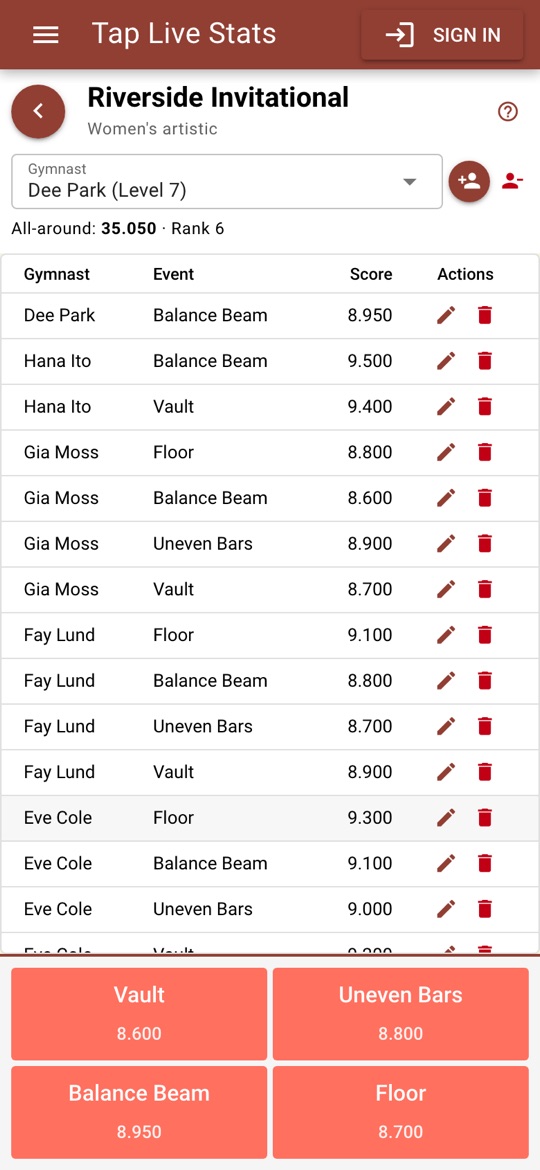
- Tap the event. Each event button shows the gymnast's score once they have one.
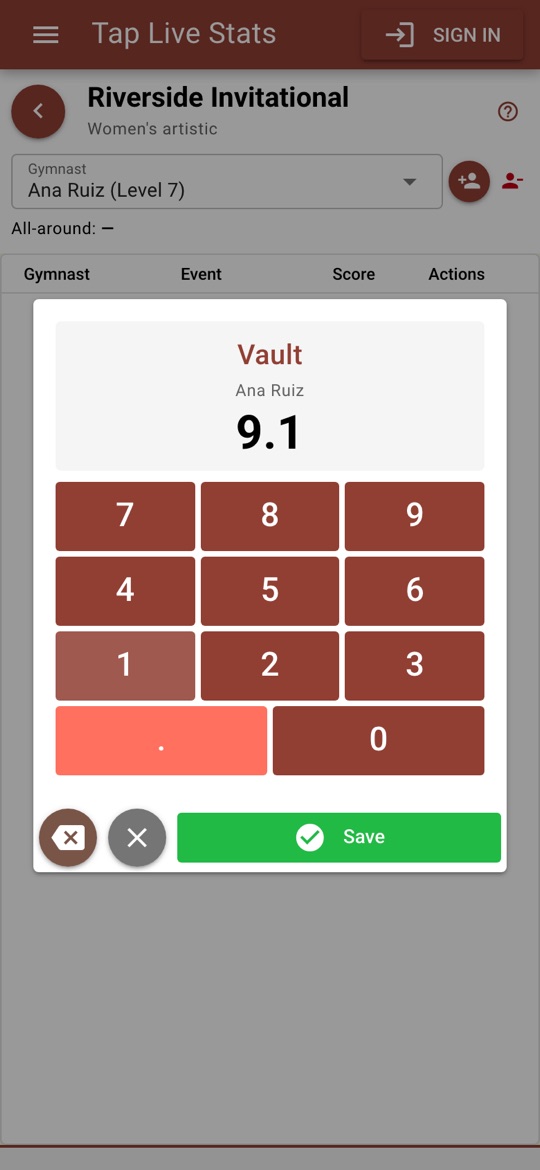
- Type the score and tap Save.
A final score must be above 0 and no more than 10; a higher score is refused with "Scores above 10 need Difficulty + Execution entry". Each gymnast has one score per event, so entering an event again replaces the score, which is also how to record the vault that counts when a gymnast vaults twice.
Difficulty + Execution
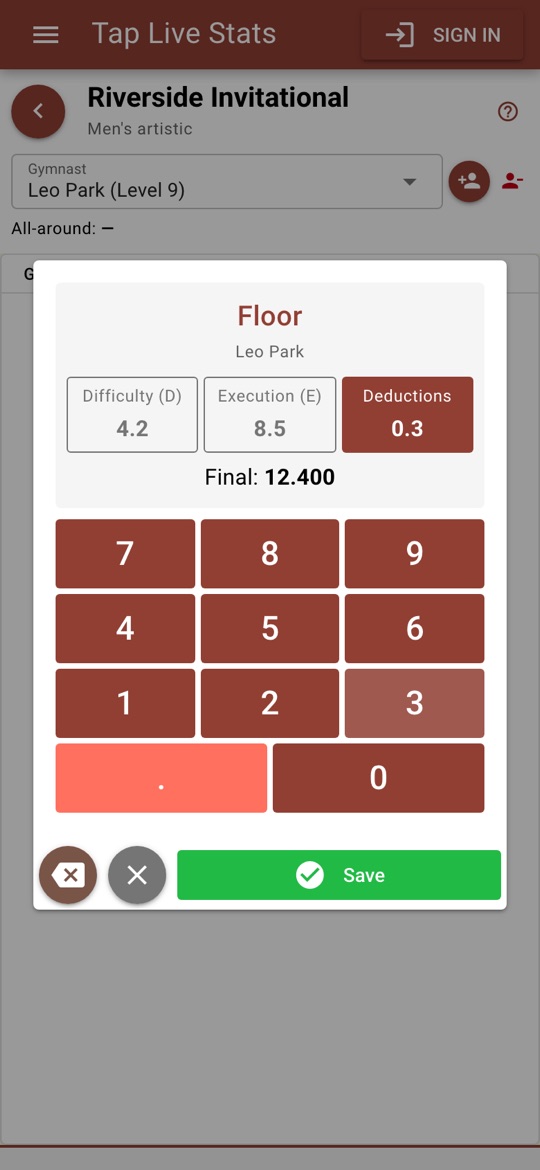
In a Difficulty + Execution meet, the keypad has three boxes: Difficulty (D), Execution (E) and Deductions. Tap a box, type its value and move to the next; the final score, D plus E minus deductions, updates as you type. Execution must be between 0 and 10.
The line under the gymnast's name shows their all-around and place once they have every event.
Fixing mistakes
Every score is listed with the gymnast and event. Tap the pencil to change it, or enter the event again; tap the trash can to delete it. If you are signed in, a deleted score is removed from your backed-up copy too.
Reading the results
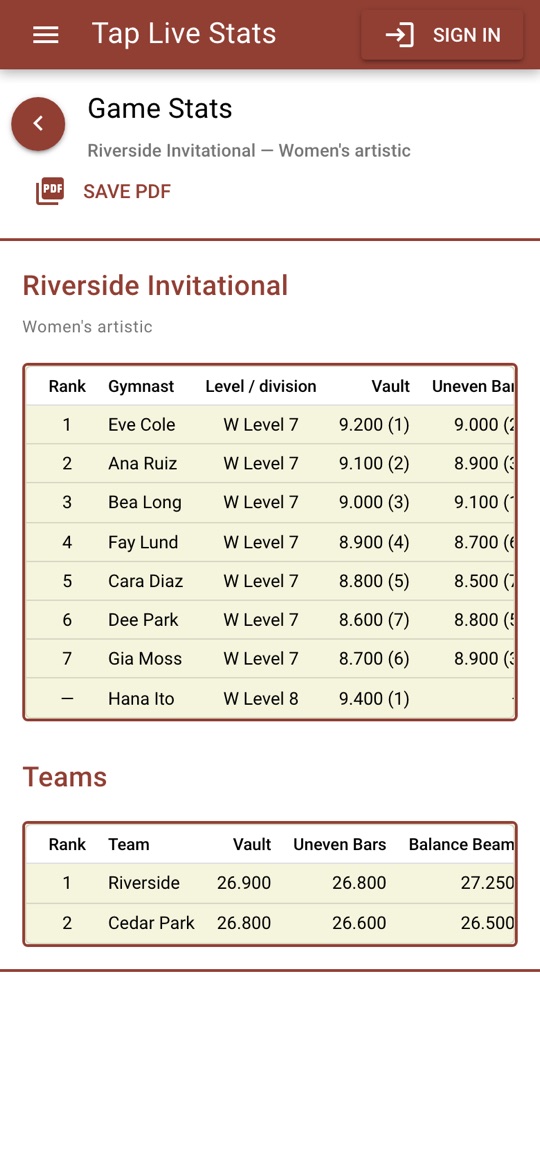
Open View Stats on the meet for one row per gymnast:
- Rank: the gymnast's all-around place within their gender and level. Ties share a place, and the next place is skipped.
- One column per event: the score, with the gymnast's place on that event in brackets.
- All-around: every event added together. It appears once the gymnast has a score on every event; until then the rank is a dash.
Team totals
When the meet counts team totals, the Teams table adds each team's best scores on every event, up to the count per event (a team with fewer gymnasts on an event counts all of theirs), and ranks the teams by the total.
Tips for accurate scores
- Add the whole lineup, with levels and teams, before the first rotation.
- Check the gymnast at the top before you tap an event. It is the easiest way to put a score on the wrong gymnast.
- Enter scores from the scoreboard as they are posted, and read the score on the keypad before you save.
- Not sure what a screen does? Tap the ? at the top of the meet screen for a short walkthrough.