How to Keep Hockey Stats with Tap Live Stats
Hockey moves faster than any other sport you can keep stats for, and a good box score captures all of it: goals and assists, shots and missed shots, hits and blocks, faceoffs, saves and penalty minutes. Tap Live Stats lets you keep one for both teams on your phone and keeps the score as goals go in. This guide covers recording each play, penalties, the score, and reading the box score column by column.
Before the game
Open Tap Live Stats, tap Track Player Stats, then Start New Game and choose Hockey. Enter the home and visiting team names, check the date and time, and tap OK. Your game appears in the list; tap it to start recording.
Have both rosters' jersey numbers handy, including both goalies. Line changes are fast, so the numbers on the ice change all the time.
What you can record
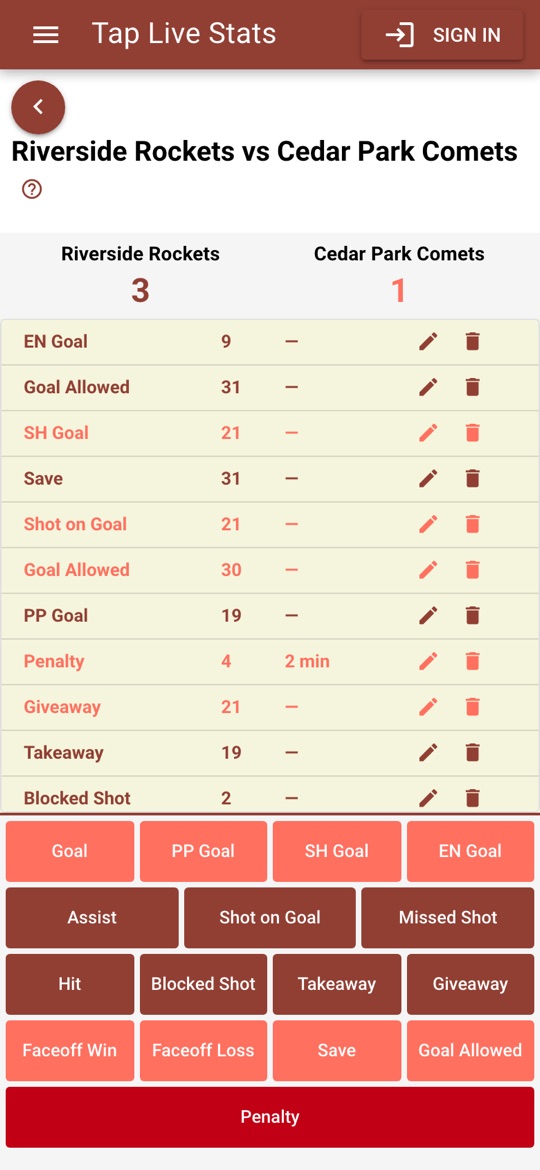
The buttons are grouped by what they do:
- Goals: Goal, PP Goal (power play), SH Goal (short-handed) and EN Goal (empty net). Each one adds to the score.
- Shooting: Assist, Shot on Goal and Missed Shot.
- Physical play and possession: Hit, Blocked Shot, Takeaway and Giveaway.
- Faceoffs: Faceoff Win and Faceoff Loss.
- Goalie: Save and Goal Allowed.
- Penalty, which asks for the minutes.
Recording a play
Every play takes the same three steps:
- Tap the button for what just happened, such as Goal.
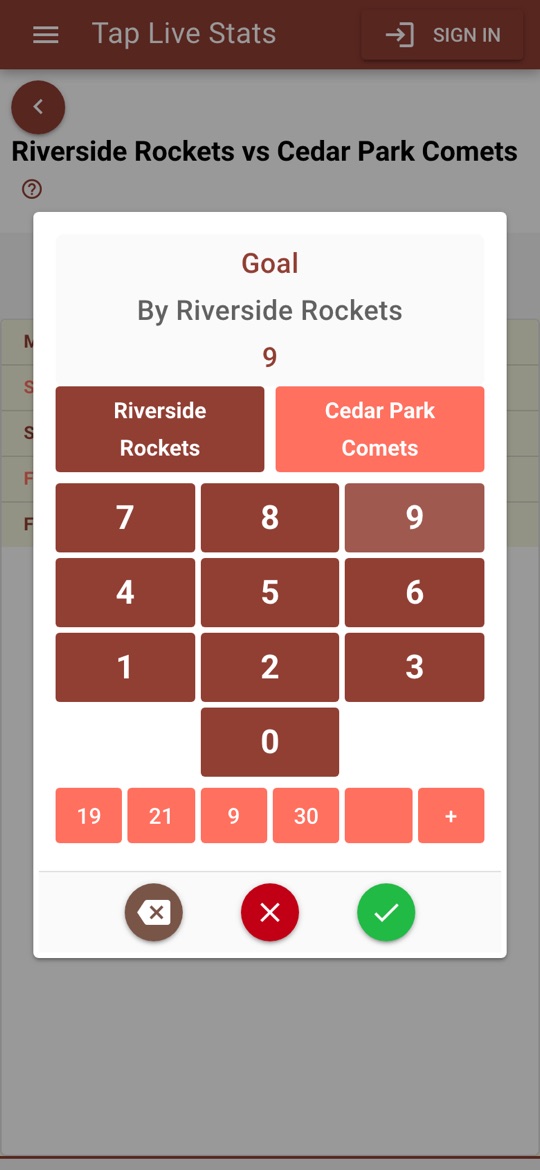
- On the number pad, check the team. The pad names the team at the top; tap the other team's button to switch.
- Tap the player's jersey number and tap the green check mark.
The red ✗ closes the pad without saving, and the backspace key fixes a mistyped digit. Recorded plays appear in a list at the top of the screen, newest first.
Penalties
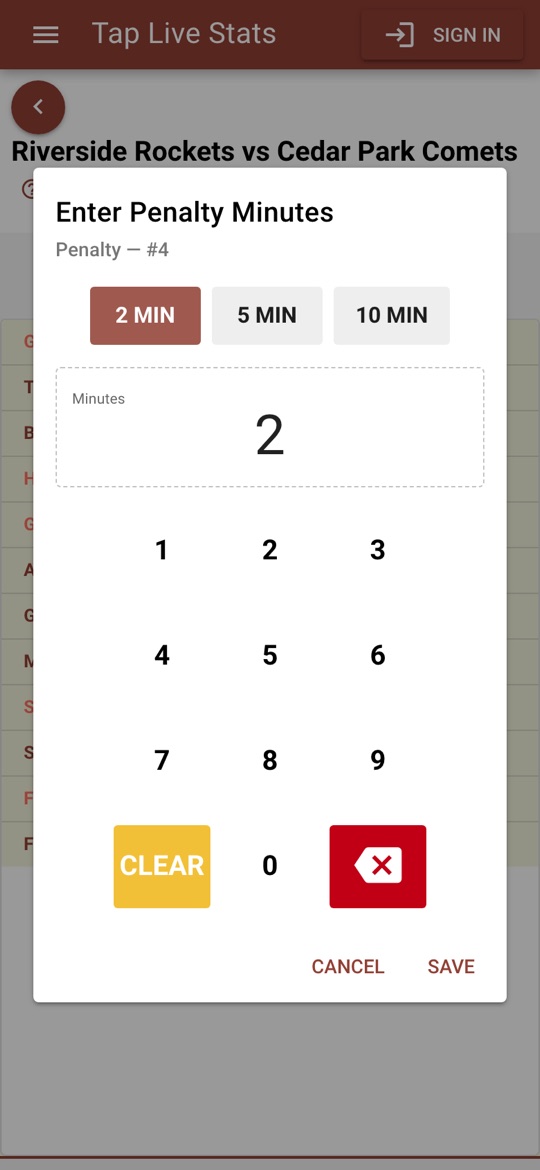
After the jersey number for a Penalty, the app asks for the minutes. Tap 2 min, 5 min or 10 min, or type the minutes, and tap Save. The minutes add up in the PIM column.
Quick-select jerseys
Below the keypad are five quick-select slots. The first five jersey numbers you record fill them, and after that one tap on a slot enters that number. To put the number you have typed into a slot instead, tap the slot before you confirm. Loading your regulars into the slots early makes a fast game much easier to keep up with.
Keeping the score
Goal, PP Goal, SH Goal and EN Goal each add one to the scoring team's score automatically, and deleting the goal takes it back off. Goal Allowed does not change the score: it counts against the goalie, and the shooter's goal has already scored.
If the score on the screen drifts from the scoreboard, tap the team's score and type the correct number.
Recording common plays
Each button records one player's part of a play, so a play that involves two players takes two entries. Recording them the way a statistician would keeps both teams' box scores honest:
- A goal: the goal button that fits (Goal, PP Goal, SH Goal or EN Goal) for the scorer, Assist for each player credited with an assist, and Goal Allowed for the other team's goalie, except on an empty net. A goal already counts as a shot on goal, so never add Shot on Goal to it.
- A saved shot: Shot on Goal for the shooter, then Save for the goalie.
- A faceoff: Faceoff Win for the player who won it, then Faceoff Loss for the player who lost it.
- A penalty: Penalty for the player sent off, with the minutes. A power-play goal while they sit is a PP Goal.
Fixing mistakes
Wrong player or wrong minutes? Tap the pencil next to the play to change the jersey number or, for a penalty, the minutes. Wrong button or wrong team? Tap the trash can to remove the play and record it again; deleting a goal takes it off the score. The box score updates to match.
If you are signed in, deleting a play also deletes its backed-up copy, so it does not come back, and edits are backed up the next time your game is.
Reading the box score
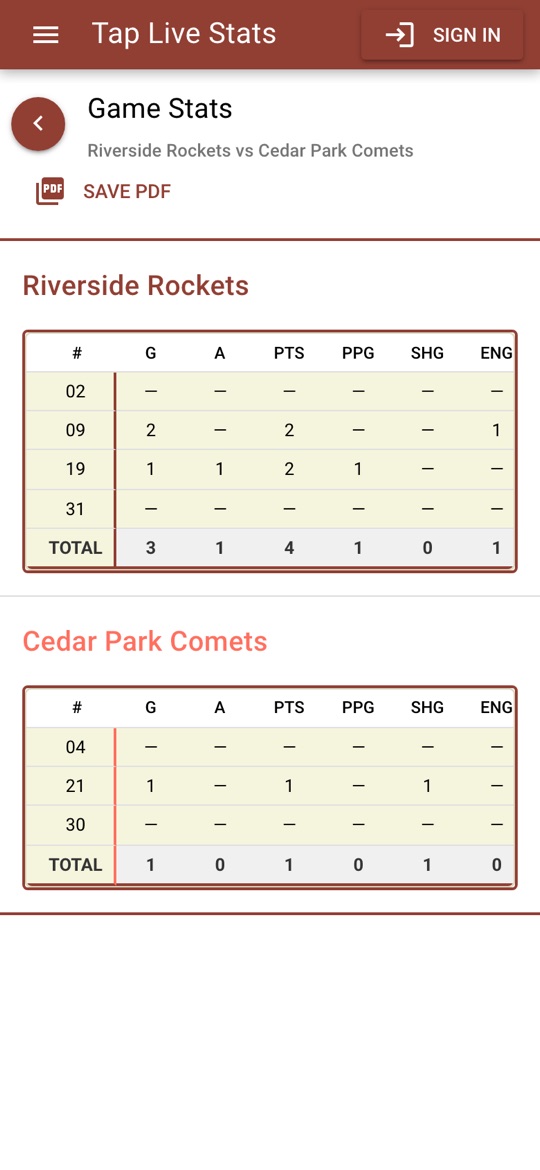
Open View Stats on the game for a box score of every player on both teams, sorted by jersey number, with a TOTAL row for each team. Here is what each column means and how it is calculated:
- G, A, PTS, PPG, SHG, ENG: goals (every kind), assists, points (goals plus assists), and the power-play, short-handed and empty-net goals among them.
- SOG, MS: shots on goal, goals included, and missed shots.
- HIT, BLK, TK, GV: hits, blocked shots, takeaways and giveaways.
- FW, FL, FO%: faceoffs won, lost and the percentage won, such as 66.7%.
- SV, GA, SV%: saves, goals allowed and save percentage, saves divided by shots faced, such as 0.900.
- PIM: penalty minutes.
A dash means the player had none of that stat, or no attempts for a percentage.
Tips for accurate stats
- Keep a line chart handy. Knowing who is on the ice makes the jersey number one tap away.
- Record Goal Allowed for the goalie on every goal against, except an empty-net goal. It is what makes save percentage right.
- Check the score against the scoreboard at each intermission.
- Not sure what a screen does? Tap the ? at the top of the recording screen for a short walkthrough.