How to Keep Weightlifting and Powerlifting Results with Tap Live Stats
A lifting meet is three attempts at each lift for every lifter, and the result depends on the best good lift of each. Tap Live Stats keeps the whole meet on your phone: add your lifters once, record each attempt as a good lift or a no lift, and the app works out every lifter's best lifts, total, place in their weight class and Sinclair or DOTS score. This guide covers setting up the meet, recording attempts and reading the results.
Setting up the meet
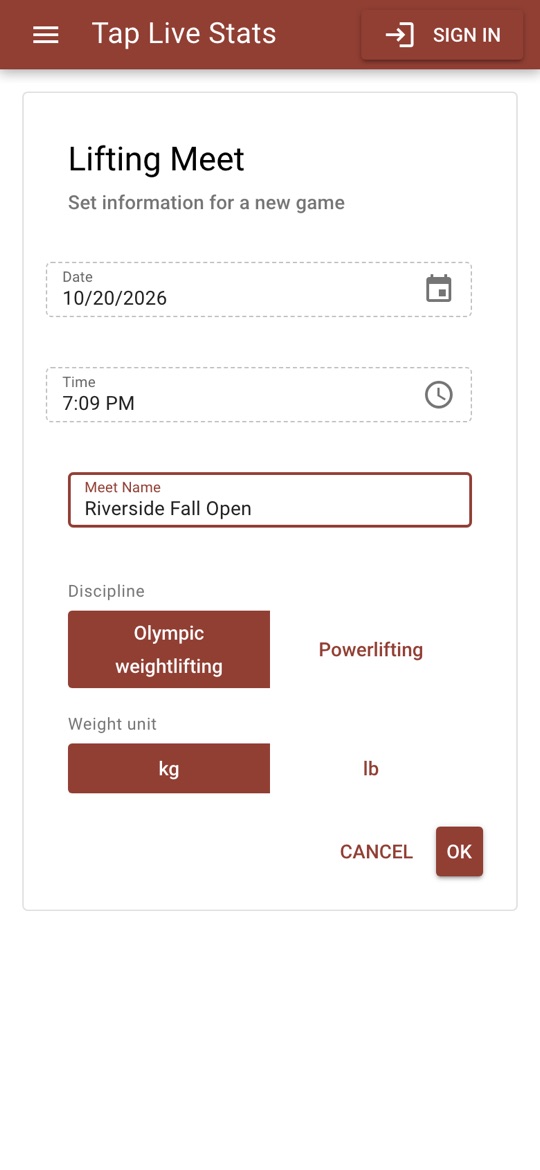
Open Tap Live Stats, tap Track Player Stats, then Start New Game and choose Weightlifting. Enter the meet name, then choose the discipline:
- Olympic weightlifting: Snatch and Clean & Jerk, scored with the Sinclair coefficient.
- Powerlifting: Squat, Bench Press and Deadlift, scored with DOTS.
Choose kg or lb for the weights you will type. In pounds the keypad has no decimal key, since bars load in whole pounds; the app keeps every weight in kilograms underneath, so the scores are the same either way. Check the date and time and tap OK.
Adding lifters
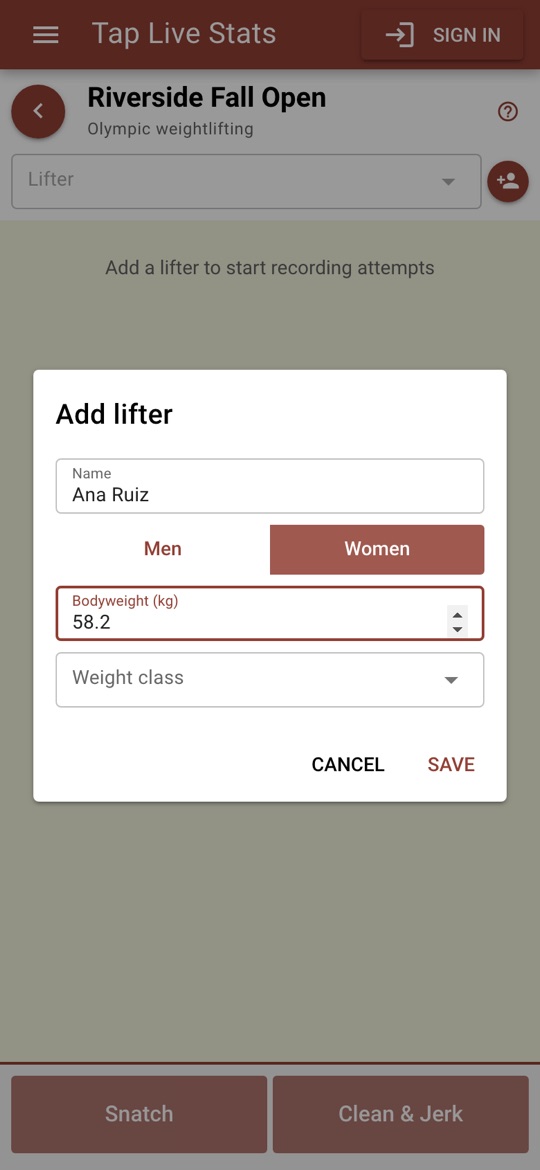
Tap the add-person button at the top of the meet. Enter the lifter's name, choose Men or Women and type their bodyweight. The weight class fills in from the bodyweight when you save: the IWF classes in force from August 2026 for Olympic lifting, or the IPF classes for powerlifting. If your meet uses other classes, choose or type one before saving.
To remove a lifter, choose them and tap the remove button next to their name. Their attempts are removed with them.
Recording attempts
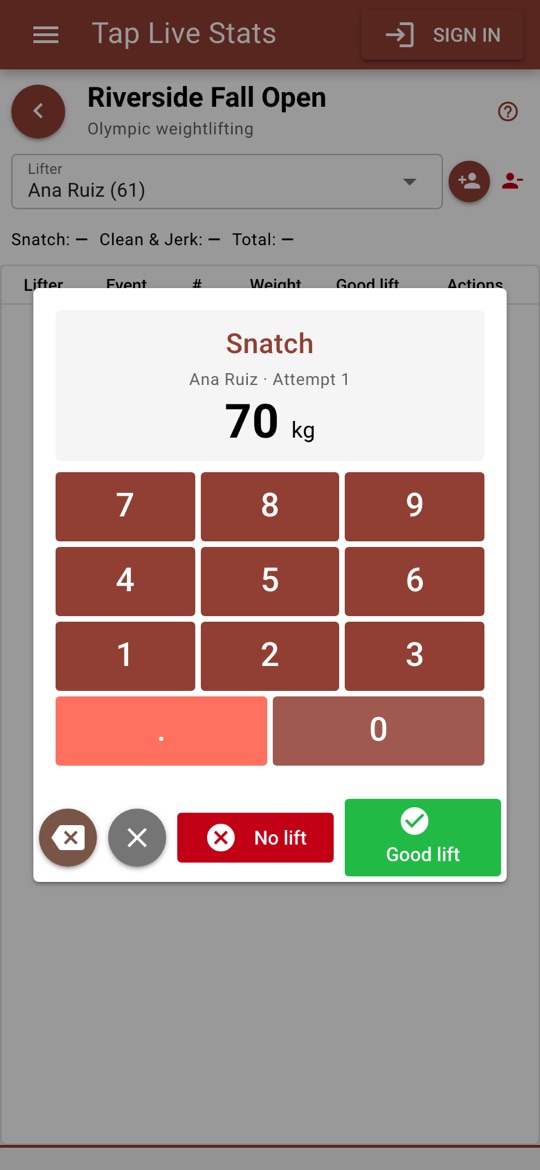
Each attempt takes four steps:
- Choose the lifter in the Lifter box at the top.
- Tap the lift, such as Snatch.
- Type the weight on the bar. The keypad shows the lifter and the attempt number.
- Tap Good lift or No lift.
Attempts are numbered 1 to 3 for each lift automatically. A fourth is refused with "All three attempts are used for this lift".
The line under the lifter's name shows their best good lift of each lift so far and their total, so you can call the next attempt without leaving the screen.
Fixing mistakes
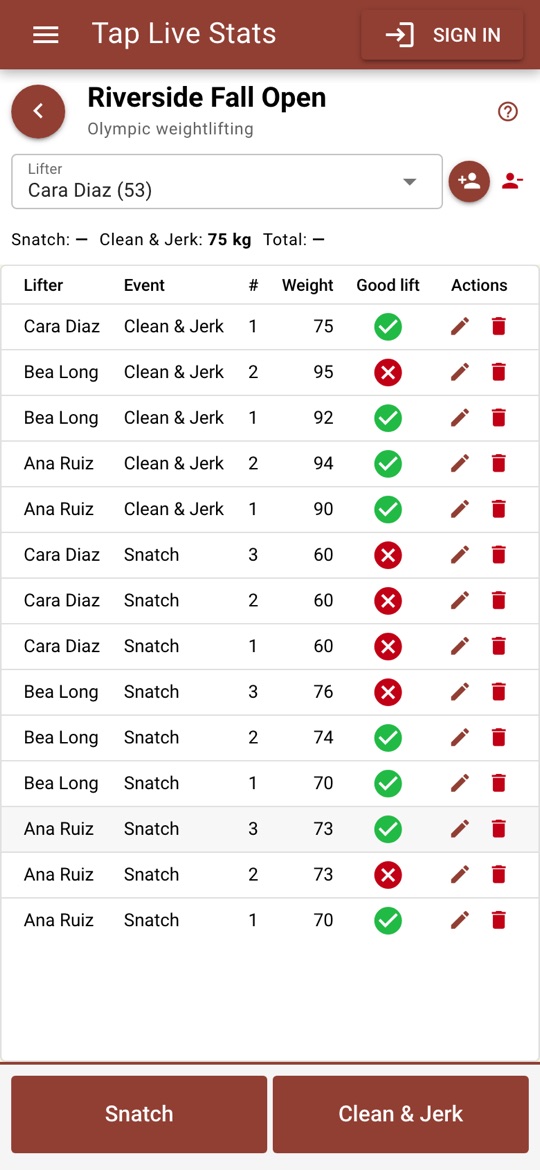
Every attempt is listed with its lifter, lift, attempt number, weight and result. Tap the pencil to change the weight or turn a no lift into a good lift, or the reverse; the totals and places update at once. Tap the trash can to delete an attempt. If you are signed in, a deleted attempt is removed from your backed-up copy too.
Reading the results
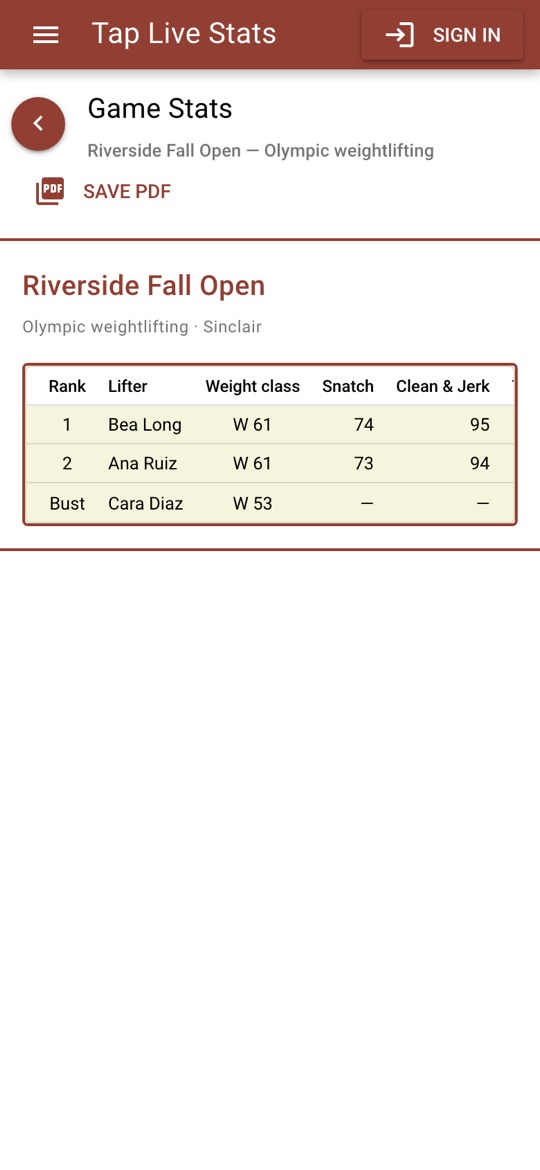
Open View Stats on the meet for one row per lifter:
- Rank: the lifter's place within their gender and weight class, by total. A tie on total goes to the lighter lifter; an exact tie shares the place.
- One column per lift: the lifter's best good lift.
- Total: the best good lift of each lift added together.
- Sinclair or DOTS: the total adjusted for bodyweight, for comparing lifters in different classes, such as for a best lifter award. It does not change the places, which are decided by total.
A lifter has no total or rank until they have a good lift at every lift. Bust means they missed all three attempts at a lift, so they are out of the competition.
Tips for accurate results
- Add every lifter, with their bodyweight from the weigh-in, before the first attempt.
- Choose the lifter before you tap the lift. It is the most common way an attempt ends up on the wrong lifter.
- Record the decision as soon as the referees give it, and read the weight at the top of the keypad before you tap.
- Not sure what a screen does? Tap the ? at the top of the meet screen for a short walkthrough.