How to Keep Swim Meet Results with Tap Live Stats
A swim meet moves fast: heat after heat, relays, diving, and a results board that never stops changing. Tap Live Stats keeps the whole meet on your phone. Add your swimmers once, choose yards or meters, tap an event and type the time, and the app keeps every swim, works out each swimmer's best time and ranks them. This guide covers setting up a meet, recording swims, relays and diving, DQs and scratches, and reading the results.
Before the meet
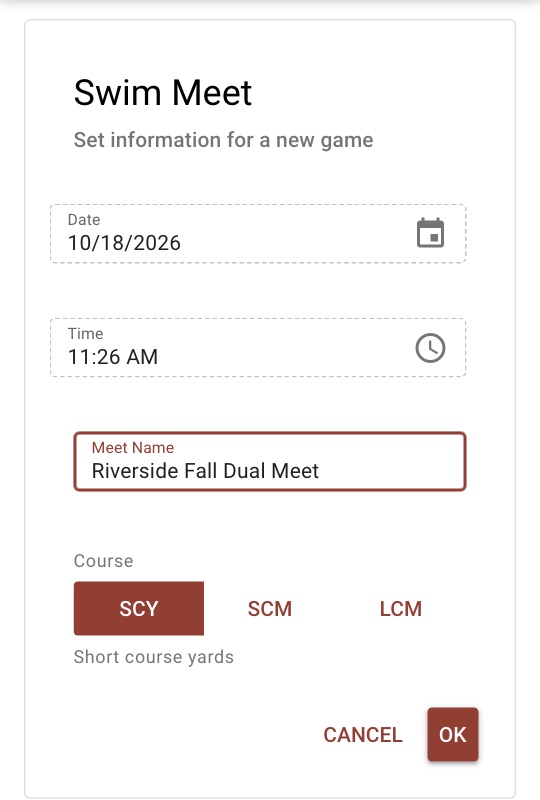
Open Tap Live Stats, tap Track Player Stats, then Start New Game and choose Swimming. Enter the Meet Name and choose the course: SCY (short course yards), SCM (short course meters) or LCM (long course meters). Most high school and age-group meets in the US are short course yards, so that is already selected. Check the date and time and tap OK.
The course decides which events you see and how they are labelled. A yards meet has the 500, 1000 and 1650 free and the 100 IM; a meters meet has the 400, 800 and 1500 free and the platform dive. Times from a yards pool and a meters pool are never compared with each other.
Open the meet and add your swimmers and divers at the top of the screen: tap the add button, enter the name, choose Women or Men, and pick or type a division such as 11-12, 13-14, Open or Varsity. The team is optional; it is offered later as a relay team name. The whole meet is one game however many swimmers it holds, so it counts once toward your active games.
The event buttons
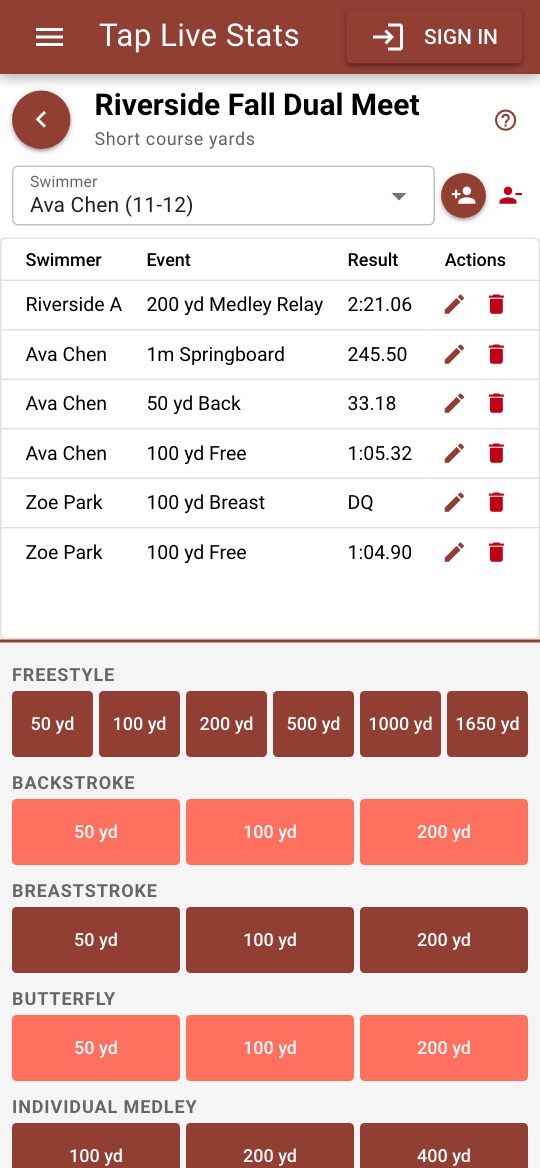
Below the results list are the events, grouped by stroke, with the distance on each button in the meet's unit:
- Freestyle: 50, 100, 200, then 500, 1000 and 1650 in yards, or 400, 800 and 1500 in meters.
- Backstroke, breaststroke and butterfly: 50, 100 and 200.
- Individual medley: 100 (yards only), 200 and 400.
- Relays: the 200, 400 and 800 freestyle relays and the 200 and 400 medley relays.
- Diving: 1m and 3m springboard, and platform in a meters meet.
Swims and dives are recorded for the swimmer selected at the top, so those buttons stay greyed out until you add someone. Relays belong to a relay team instead and work with no swimmer selected. The event list scrolls, so swipe up inside it to reach the relays and diving.
Recording a swim
For any individual event:
- Choose the swimmer at the top of the screen.
- Tap the event, such as 100 under Freestyle.
- Type the time and tap the green check mark.
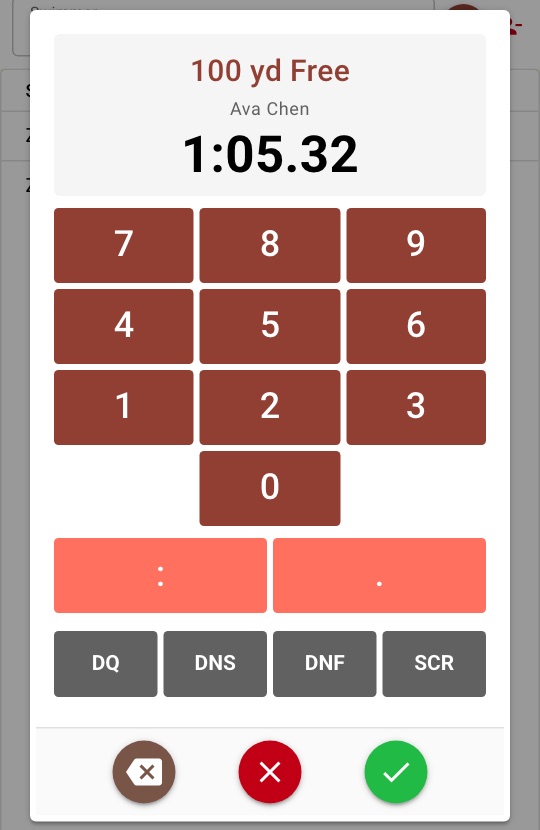
The keypad shows the full event name, such as 100 yd Free, and the swimmer. Type seconds and hundredths, like 33.18, or minutes, seconds and hundredths, like 1:05.32, using the colon and decimal point keys. Swimming is timed to the hundredth, so a third decimal place is refused. Always two digits for the seconds: a minute and five seconds is 1:05. Prelims and finals are simply two swims of the same event; both are kept and the faster one counts.
DQ, DNS, DNF and scratches
Under the keypad are buttons for the results that are not a time. Tapping one saves it straight away:
- DQ: disqualified.
- DNS: did not start, for a swimmer who was entered but did not swim.
- DNF: did not finish.
- SCR: scratched, for a swimmer withdrawn from the event before it started.
Diving offers DNS and SCR. None of these count as a time: the swimmer still appears in the results for that event, with No mark and no rank.
Recording diving
Choose the diver, tap 1m Springboard, 3m Springboard or Platform, and type the diver's total score for the event as shown on the scoreboard, such as 245.50, with up to two decimal places. Tap the check mark to save it. The app records the event total, not each dive, and ranks divers highest score first.
Recording a relay
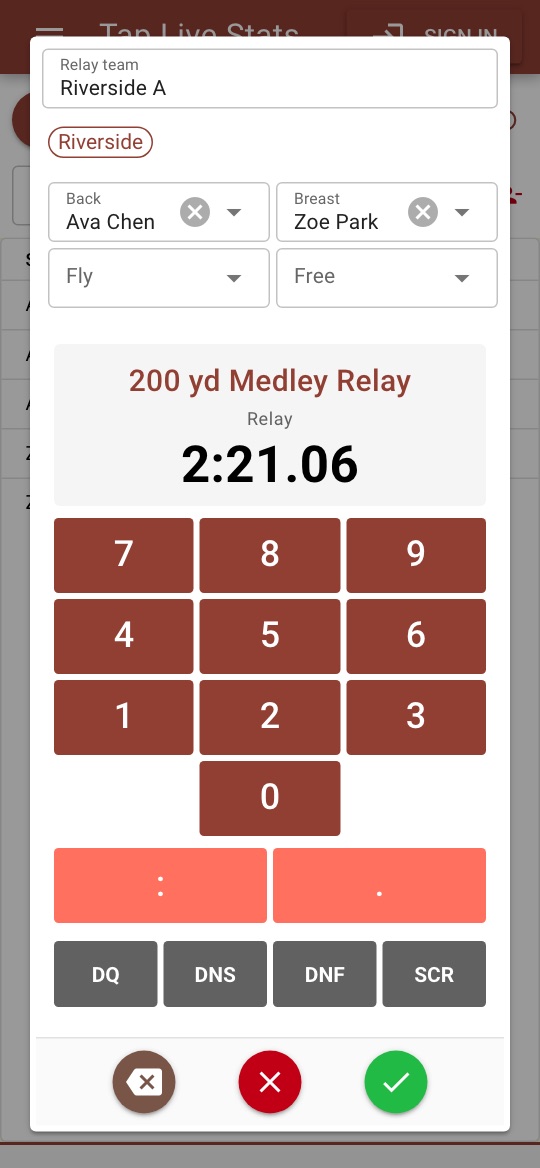
Tap the relay, enter the relay team name, such as Riverside A, and choose up to four legs from your swimmers. Names you have used before, and your swimmers' teams, appear under the name field to reuse with one tap. For a medley relay the legs are labelled Back, Breast, Fly and Free, the order they are swum. Then type the time and tap the check mark, or tap DQ, DNS, DNF or SCR.
The legs are optional, but they matter for ranking. A relay is ranked against other relays whose legs are all from the same gender and division. With no legs entered, or a mixed relay, it still appears in the results but without a rank.
Fixing mistakes
Tap the pencil next to any entry to change it: switch a time to a DQ or back, correct the time or dive total, or for a relay change the team name or the legs. Wrong event or wrong swimmer? Tap the trash can, confirm, and record it again. Deleting removes the entry from your account backup too.
Removing a swimmer with the remove button deletes their individual results and takes them off any relay they swam. The relay result itself stays.
Reading the results
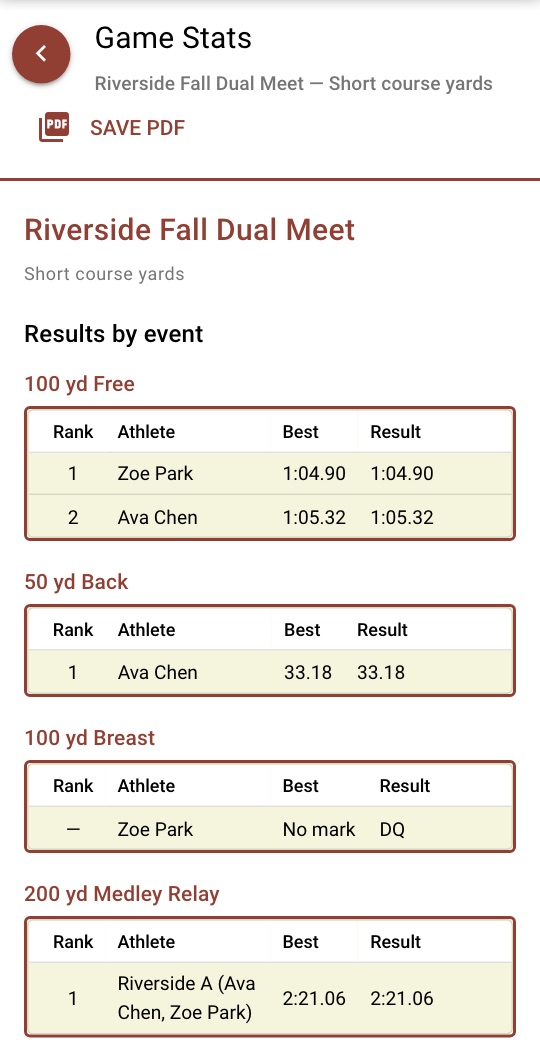
Open View Stats on the meet. Results by event has a table for each event that has results, labelled the way the meet was swum, such as 100 yd Free or 200 yd Medley Relay:
- Rank: the swimmer's place among swimmers of the same gender and division. Equal times share a place.
- Athlete: the swimmer or diver, or for a relay the team name and its legs.
- Best: the fastest time, or for diving the highest total.
- Result: every swim in the order recorded, including DQ, DNS, DNF or SCR.
Below it, Results by athlete lists each swimmer's events with their best time and rank, relays included, which is the quick view for a swimmer or parent after the meet.
Recorded a swim meet before Tap Live Stats added rosters? It still opens, with its swimmer on the roster, its original meter events and every result in place. A relay from that meet is listed under the swimmer's name without a rank, because it was saved without a team. The first time you add a second swimmer, the app asks whether the original swimmer competes in the women's or men's events.
Tips for accurate results
- Choose the course before you create the meet. It sets the event list, and a yards time is never compared with a meters time.
- Add every swimmer and diver before the first heat. Once the meet is moving, there is no time to type names.
- Check the swimmer at the top before you tap an event. It is the most common way a time ends up on the wrong swimmer.
- Record times from the scoreboard as soon as each heat finishes, and read the time at the top of the keypad before you save.
- Enter relay legs when you know them. Without legs a relay cannot be ranked.
- Not sure what a screen does? Tap the ? at the top of the recording screen for a short walkthrough.