How to Keep Track and Field Results with Tap Live Stats
Track and field is not like the team sports. There is no running score, just athletes, events and a time or a mark for every run, jump and throw. Tap Live Stats keeps the whole meet on your phone: add your athletes once, tap an event, type the result, and the app works out each athlete's best mark and ranks them. This guide covers setting up a meet, recording races, field events and relays, fouls and DNFs, and reading the results.
Before the meet
Open Tap Live Stats, tap Track Player Stats, then Start New Game and choose Track. Enter the Meet Name, check the date and time, and tap OK. The meet appears in your list; tap it to open the recording screen.
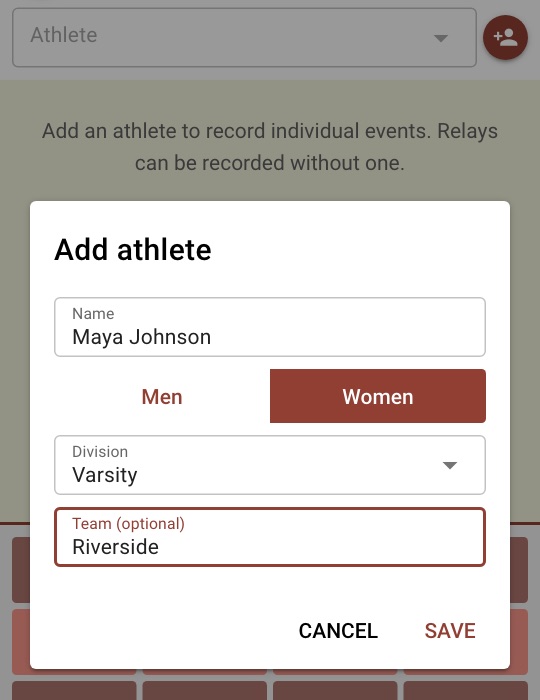
Add your athletes at the top of the screen. Tap the add button, enter the athlete's name, choose Women or Men, and pick or type a division such as Varsity, JV or Middle School. The team is optional; it is offered later as a relay team name. Add one athlete or your whole team: the meet is a single game however many athletes it holds, so it counts once toward your active games.
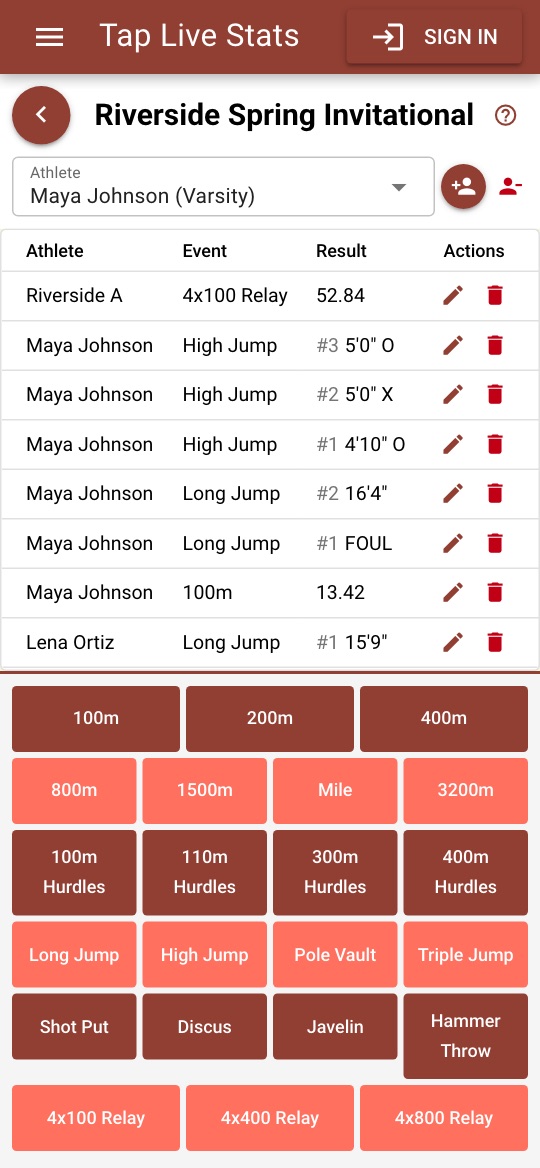
The event buttons
Below the results list is one button for each event, in six rows:
- Sprints: 100m, 200m and 400m.
- Distance: 800m, 1500m, the Mile and 3200m.
- Hurdles: 100m, 110m, 300m and 400m Hurdles.
- Jumps: Long Jump, High Jump, Pole Vault and Triple Jump.
- Throws: Shot Put, Discus, Javelin and Hammer Throw.
- Relays: 4x100, 4x400 and 4x800.
Individual events are recorded for the athlete selected at the top, so they stay greyed out until you add an athlete. Relays belong to a relay team instead and work with no athlete selected.
Recording a result
For a race, a jump or a throw:
- Choose the athlete at the top of the screen.
- Tap the event, such as Long Jump.
- Type the result on the keypad and tap the green check mark.
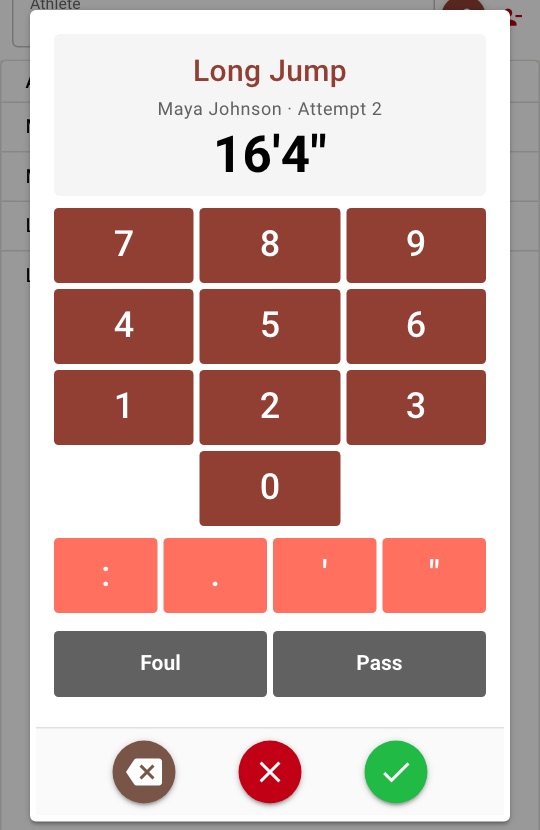
The keypad shows the event, the athlete and, for field events, the attempt number, so you can see whose third jump you are entering. Attempts are numbered for you with no limit, which covers both prelims and finals. The backspace key removes the last character and the red ✗ closes the keypad without saving. Each result appears at the top of the list, newest first.
Entering times and marks
Below the digits are four symbol keys: a colon, a decimal point, a foot mark (') and an inch mark ("). Races and relays take a time, and field events take a distance or a height:
- Seconds: 13.42 or 58.1, with up to three digits after the decimal point.
- Minutes and seconds: 2:31.85 or 11:05. Always two digits for the seconds, so a minute and five seconds is 1:05.
- Feet and inches: 16'4", 5'2" or 38'10.5". Type the inch mark at the end. Whole feet on their own, like 120', also work.
- Meters: 5.12 or 42.86, typed as a plain number.
The event decides how a result is read, so a time typed for a jump, or feet typed for a race, is refused with a message and the keypad stays open to fix it. The list shows the result exactly as you typed it. Behind the scenes the app converts feet and inches to meters so it can compare marks, which means one athlete can be measured in feet and another in meters and they are still ranked correctly.
Fouls, passes, DNF and DQ
Not every attempt has a mark. Under the keypad are buttons for the results that are not a number, and tapping one saves it straight away:
- Races and relays: DNF (did not finish), DNS (did not start) and DQ (disqualified).
- Long jump, triple jump and the throws: Foul and Pass. A foul still uses up an attempt number.
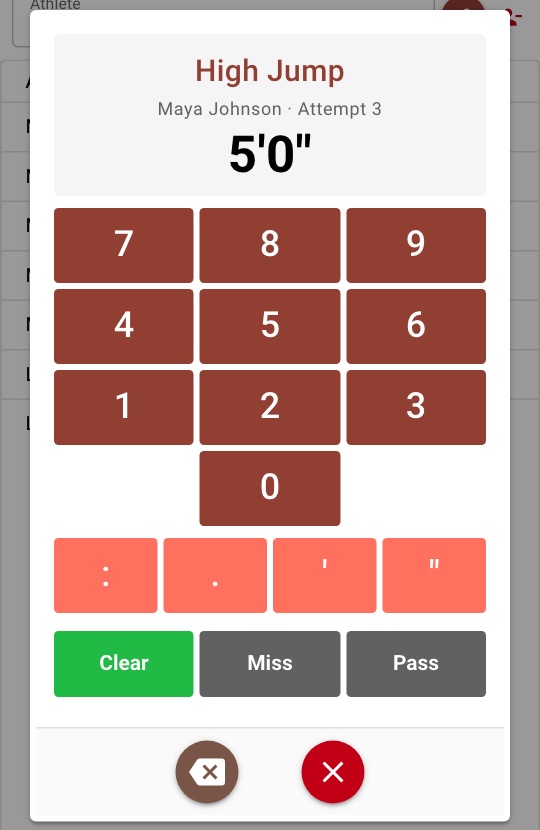
- High jump and pole vault: type the bar height, then tap Clear, Miss or Pass for that attempt. The height stays on the keypad for the athlete's next attempt, so a second try at the same bar is one tap. When the bar goes up, backspace and type the new height.
None of these count as a mark. An athlete who only fouls or does not finish still appears in the results, with No mark and no rank.
Recording a relay
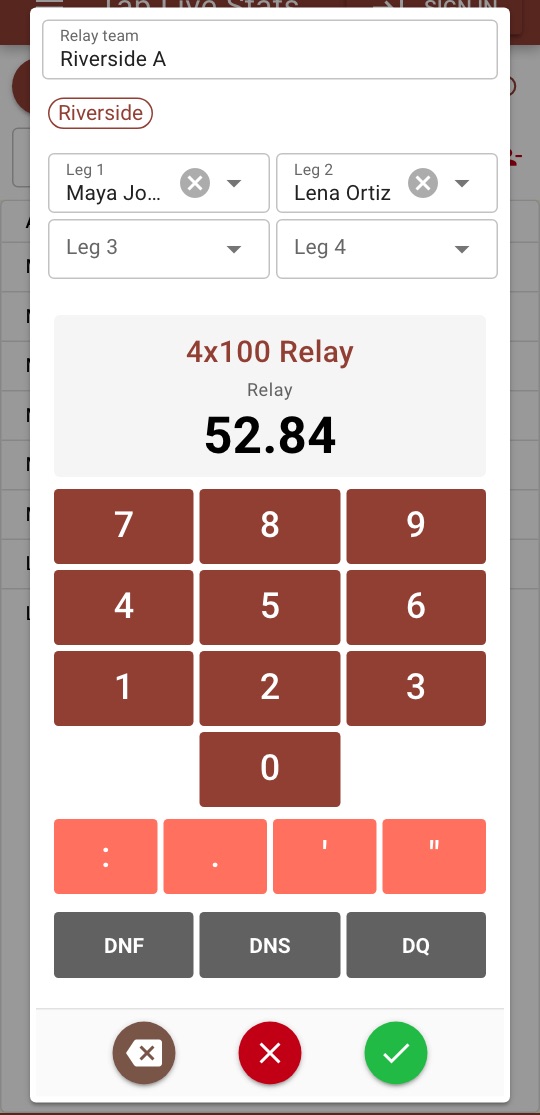
Tap the relay button, enter the relay team name, such as Riverside A, and choose up to four legs from your athletes. Names you have used before, and your athletes' teams, appear under the name field to reuse with one tap. Then type the time and tap the check mark, or tap DNF, DNS or DQ.
The legs are optional, but they matter for ranking. A relay is ranked against other relays whose legs are all from the same gender and division. With no legs entered, or with legs from different divisions or genders, the relay still appears in the results but without a rank.
Fixing mistakes
Tap the pencil next to any entry to change it. You can change the result type, for example from a mark to a DQ, correct the time or mark, and for a relay change the team name or the legs. The same rules apply as when you recorded it. Wrong event or wrong athlete? Tap the trash can, confirm, and record the result again.
Removing an athlete with the remove button deletes their individual results and takes them off any relay they ran. The relay result itself stays.
Reading the results
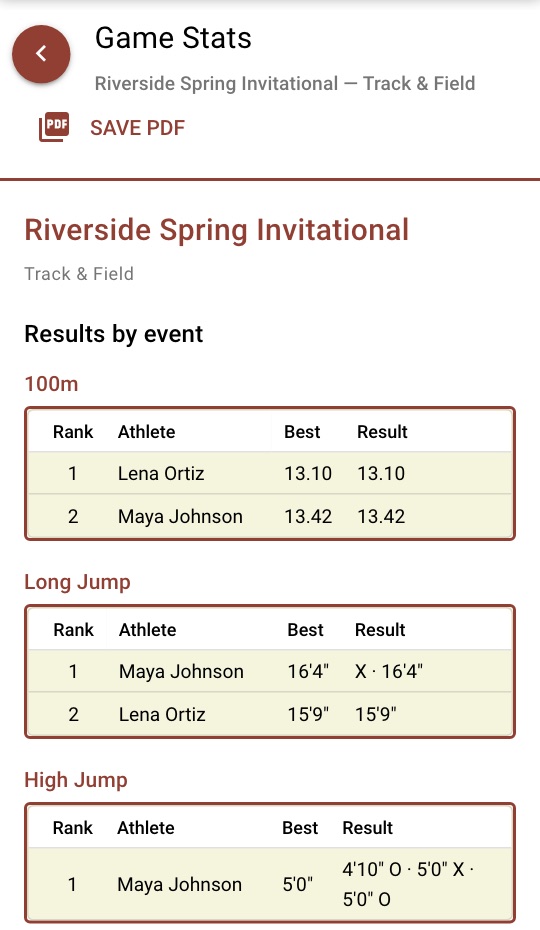
Open View Stats on the meet. Results by event has a table for each event that has results, with four columns:
- Rank: the athlete's place among athletes of the same gender and division. Athletes with the same best mark share a place.
- Athlete: the athlete, or for a relay the team name and its legs.
- Best: the fastest time in a race or relay, the longest legal mark in the long jump, triple jump and throws, or the highest cleared height in the high jump and pole vault.
- Result: every run or attempt in the order recorded, with X for a foul, – for a pass, and O or X after each height in the vertical jumps.
Below it, Results by athlete lists each athlete's events with their best mark and rank, relays included, which is the quick view for a parent or a recap. Ties in the high jump and pole vault share a place; the app does not apply the fewest-misses tiebreak.
Recorded a meet before Tap Live Stats added rosters? It still opens, with its athlete on the roster and every result in place. The first time you add a second athlete to it, the app asks whether the original athlete competes in the women's or men's events, so they can be ranked.
Tips for accurate results
- Add every athlete before the first event. Once events are running at the same time, you will not have time to type names.
- Check the athlete at the top before you tap an event. It is the most common way a result ends up on the wrong athlete.
- Record each result as soon as it is announced or posted. Times are easy to forget once the next heat is on the track.
- Read the result at the top of the keypad before you save, especially the decimal point and the inch mark.
- Enter relay legs when you know them, even if the order is a guess. Without legs a relay cannot be ranked.
- Not sure what a screen does? Tap the ? at the top of the recording screen for a short walkthrough.